
How the tablet POS works
At the centre is the Ordo app on a Windows or Linux computer. It keeps your menu, orders and reports on your premises rather than on someone else’s server, and it keeps selling when the internet drops. Tablets and phones open the till’s address in a browser and work with the same data over the café Wi-Fi.
No computer at the counter? There is also an online version of Ordo that opens in the browser on any device. Unlike the desktop app, it needs an internet connection.
- Android tablets, iPads and phones all work, as long as the browser is reasonably current.
- Devices connect by scanning a QR code from the settings screen, so nobody types addresses.
- Add Ordo to the home screen and the right screen opens with one tap.
- There is no limit on devices, and they are all included in the price.
One tablet, three jobs: till, bar, waiter
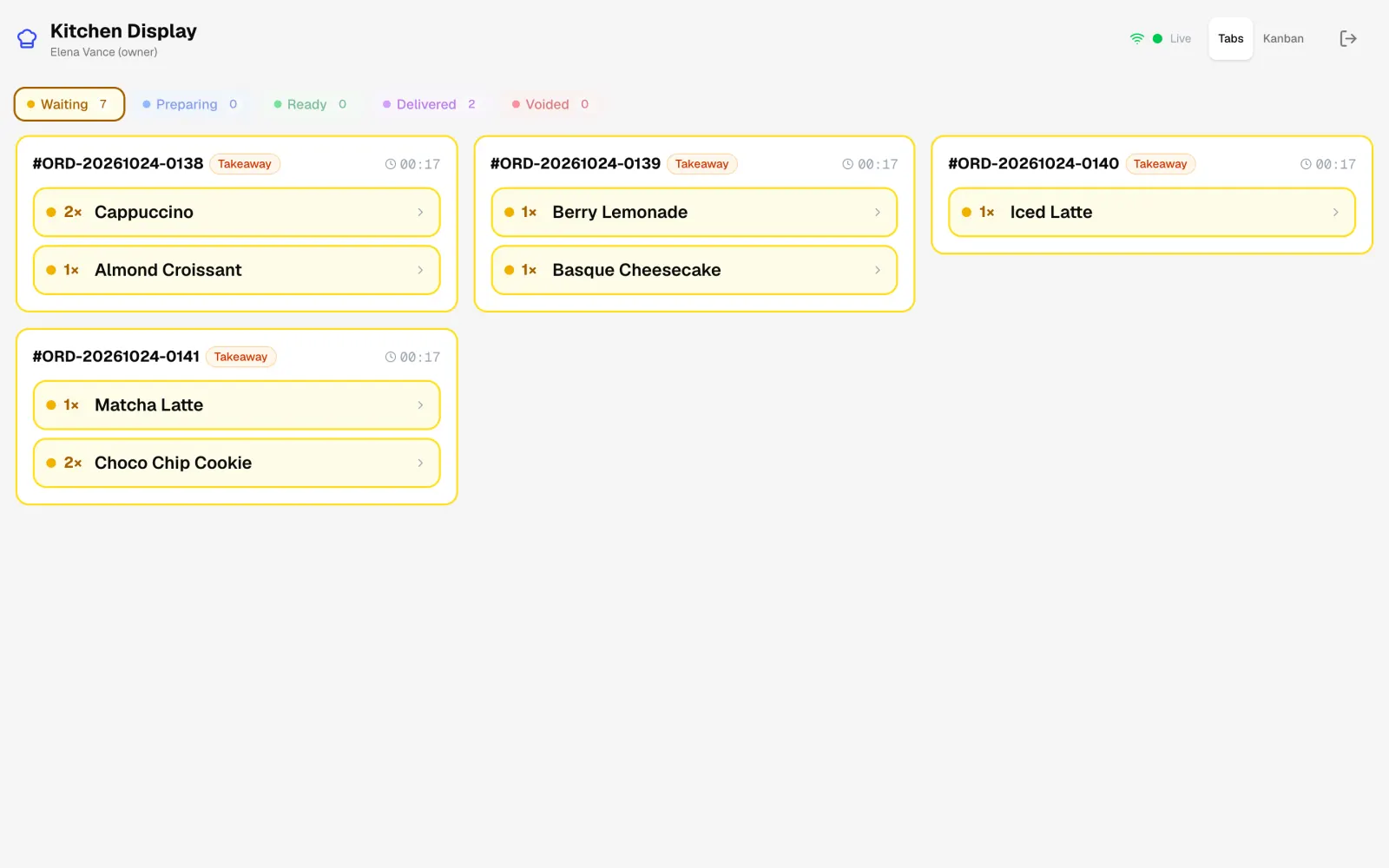
The same tablet can sit on the counter as the till, hang next to the espresso machine as the bar screen, or go into a server’s hand. Each screen does its own job without getting in the way of the others.
- Till: large buttons, drink photos, milk and syrup choices, and cash, card or split payments.
- Kitchen and bar screen: the order appears as soon as it is sent from the till, and the barista moves it from waiting to ready with one tap.
- Waiter app on a phone: take the order at the table, send it to the kitchen and see compact kitchen status icons.
Printer, cash drawer and card terminal
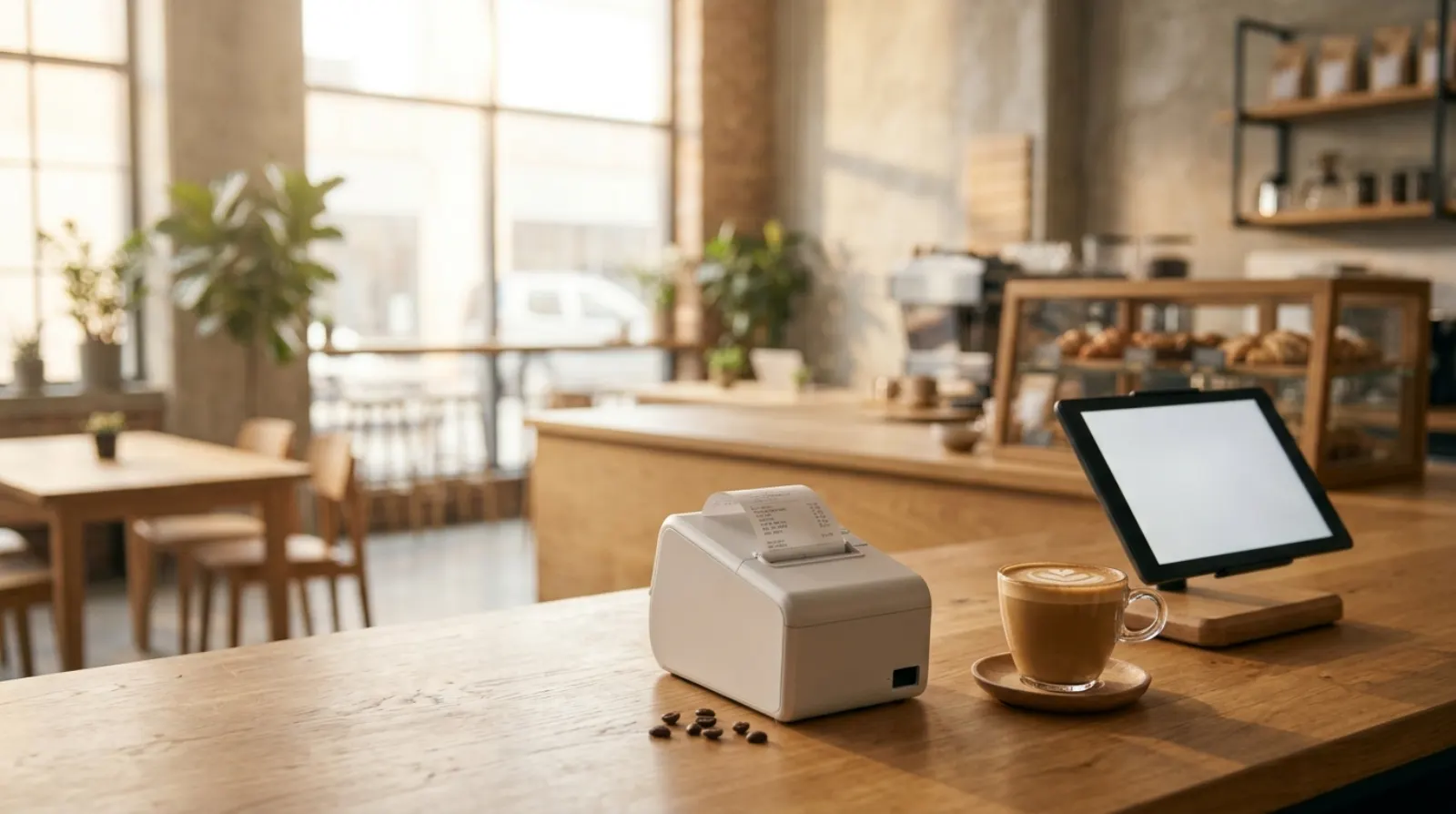
A 58 mm or 80 mm ESC/POS thermal receipt printer plugs into the Ordo computer over USB. The cash drawer connects to the printer, and Ordo pops it open when a bill is paid. Orders taken on a tablet print there: kitchen tickets, and, if you switch it on, the guest’s bill from the waiter app too.
Keep your own bank card terminal. The guest pays on it as usual, you mark the payment as card in Ordo, and at the end of the shift the card total lines up with the terminal’s report.
Ordo prints regular customer receipts, not fiscal ones. If the law where you trade requires fiscal receipts, keep issuing them on your fiscal register; Ordo runs alongside it rather than replacing it.
Choosing a tablet for the till
There is nothing to download from an app store, so the brand does not matter: an iPad, an Android tablet or a phone with a current browser will do. Choose by where the device will work.
- For the counter till, a larger tablet is easier: big buttons and drink photos are simpler to hit during the morning rush.
- A budget tablet is enough for the bar screen; in the kitchen, mount it away from steam and water.
- Servers can use their own phones: the server screen opens in the browser with nothing to install.
- Keep tablets on charge, or pick ones whose battery lasts a full shift.
- Put the till on a sturdy stand so nobody knocks it off the counter or walks off with it.
Tablets with a computer, or the online version only
There are two ways to run Ordo on tablets. For a coffee shop that needs to keep selling offline, we recommend the first.
Two ways to run a tablet POS
| Ordo computer plus tablets | Online version in the browser | |
|---|---|---|
| Where data lives | On the café computer | On the Ordo server |
| Without internet | Keeps selling; tablets only need the café Wi-Fi | Does not work |
| What you need | A Windows or Linux computer and a Wi-Fi router | Any device with a browser and internet |
| Receipt printer | USB to the Ordo computer | Ask us about your hardware |
| Number of devices | As many as you need, no extra fee | As many as you need, no extra fee |
What it looks like in a café
A few typical setups, from a takeaway counter to a café with seating:
- Takeaway coffee: the computer and printer under the counter, a tablet till with the barista, who also marks drinks ready on the bar screen.
- Coffee shop with a kitchen: a till on the counter, one tablet by the espresso machine and another in the kitchen. Stations split each order so everyone sees only their part.
- Café with seating: servers take orders on their phones, and the till handles payment and receipts.
- The owner does not have to stand at the till: shift totals and low-stock warnings arrive in Telegram.

Connecting a tablet
It usually takes a few minutes and no technician. The tablet and the Ordo computer just need to be on the same Wi-Fi network.
- Install Ordo on a Windows or Linux computer and plug in the receipt printer.
- Open the device connection section in Ordo’s settings, where you will find the address and a QR code.
- Point the tablet or phone camera at the QR code and open the link in the browser.
- Sign in as yourself: baristas, servers and kitchen staff each have their own permissions.
- Add the page to the home screen; Ordo shows how on iPhone, iPad and Android.
What happens when the internet goes down
The desktop app sells without internet. Tablets don’t need the internet either, only the Wi-Fi inside the café: as long as the router and the Ordo computer are on, the tablet till, the bar screen and the waiter app keep taking orders. When the connection comes back there is nothing to re-enter, because everything was already saved on the café computer.
The flip side is worth knowing: if the Ordo computer is switched off, tablets cannot carry on alone, because that is where the data lives. Keep it running for the whole shift.
What it costs
Ordo costs 1,990 KGS a month for one café, about 23 USD. That covers every feature and any number of tablets, phones and screens, with no charge per device. The first two weeks are free and no card is needed.
FAQ
Do I need to install an app on the tablet?
No. The tablet or phone opens Ordo in its browser. You can add it to the home screen if you like, and the icon will open that screen directly.
Will an iPad or a budget Android tablet work?
Yes. Ordo runs in the browser, so iPads and Android tablets both work. What matters is a current browser and a connection to the café Wi-Fi.
Can I run the café from a tablet alone, with no computer?
Yes, with the online version of Ordo in the browser, but that needs internet. To keep selling offline you need a Windows or Linux computer that the tablets connect to over Wi-Fi.
How do I print receipts from a tablet?
The receipt printer connects over USB to the Ordo computer, and orders from tablets print there. 58 mm and 80 mm ESC/POS thermal printers are supported.
How many tablets can I connect?
As many as you need. There is one price per café, and extra devices are not billed separately.