What the cook or barista sees
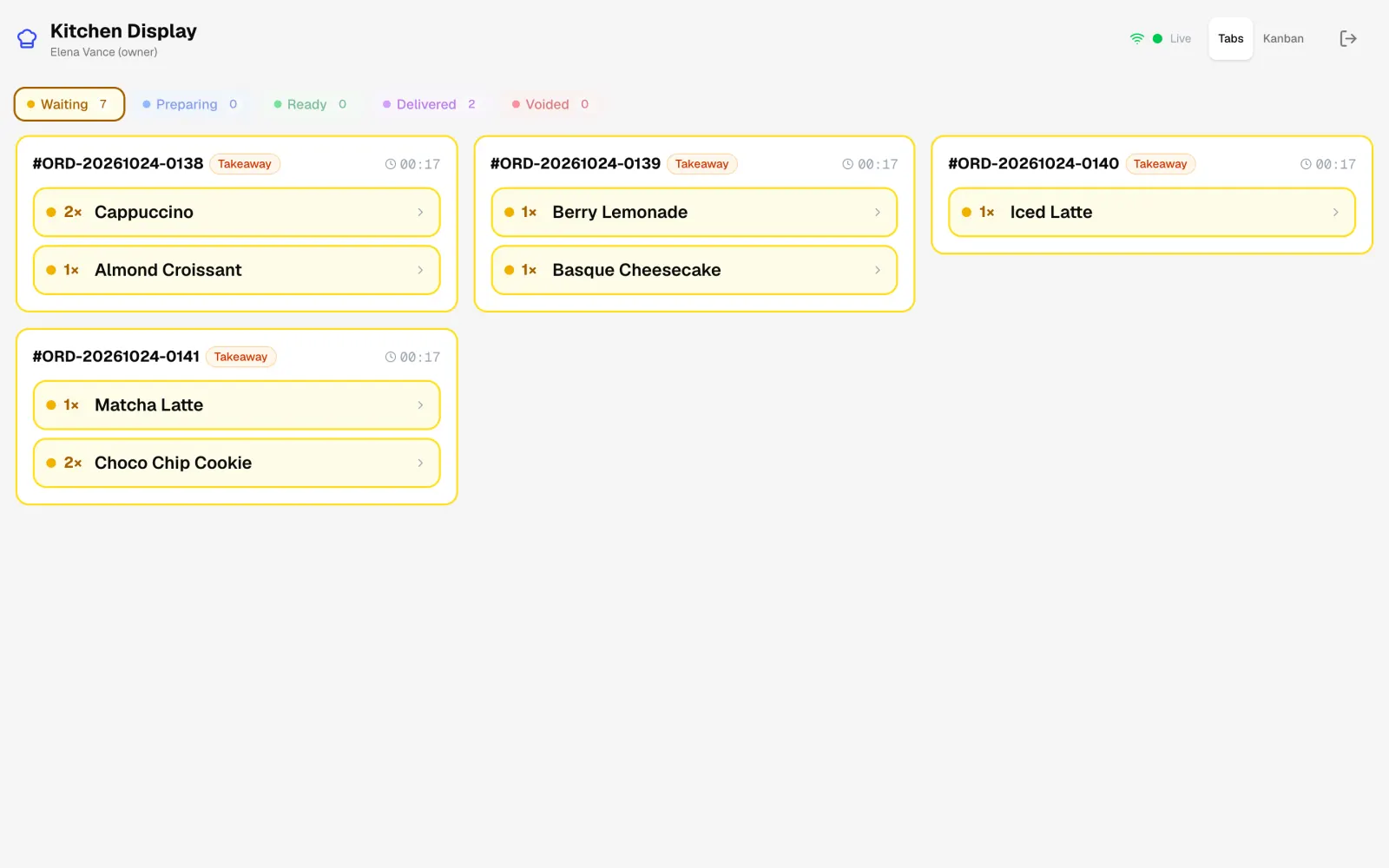
Each order shows up as a card with its items, the table number when there is one, and a timer counting how long it has been waiting. The drink size is part of the item name. Add-ons such as oat milk or an extra shot are listed under the item in the tabbed view and open with a tap on the board, and the guest's note is highlighted in colour so nobody misses it.
Items move through a clear path: Waiting, Preparing, Ready, Delivered. Voided items stay on screen for a while, marked as voided, so the kitchen does not make something the guest no longer wants.
- A timer on every order shows who has been waiting longest.
- Add-ons and guest notes appear next to the item.
- A void at the till shows up in the kitchen at once.
How the screen works
There are two views: a board with a column for each status, where you drag a card from one column to the next, and a tabbed view that suits a small tablet. If someone tries to skip a stage by accident, Ordo asks before marking the item.
To change a status, tap the item and pick the next stage. Waiters see on their own screen that an item is ready, so nobody has to run to the bar and ask.
Stations: the bar and the kitchen apart
If you have a coffee bar and a kitchen for pastries or breakfast, set up stations and assign menu categories to each. The barista then sees only drinks and the cook sees only food, even though the guest paid for everything on one bill.
A small coffee shop where one barista makes and hands out everything does not need stations at all: a single screen at the bar shows every item. You can add stations later, once you open a kitchen or a second bar.
- The owner or manager sets up stations.
- Kitchen staff can be assigned to a specific station.
- Cooks, managers and owners can change statuses on the kitchen display.
Which tablet or monitor to use
You do not need special hardware. The kitchen display opens in the browser of any tablet, phone or monitor with a computer on the café Wi-Fi. Ordo settings show a QR code with the screen's address: scan it with the tablet, sign in with a kitchen staff account, and add the kitchen screen to the tablet's home screen like an app.
A few practical tips. In a hot kitchen, keep the screen away from the stove, steam and the sink. A plain tablet is enough for a bar with one station, and the tabbed view suits it best; a large kitchen monitor shows the column board better. Keep the tablet on charge all shift and mount it at eye level so nobody reaches for it with wet hands.
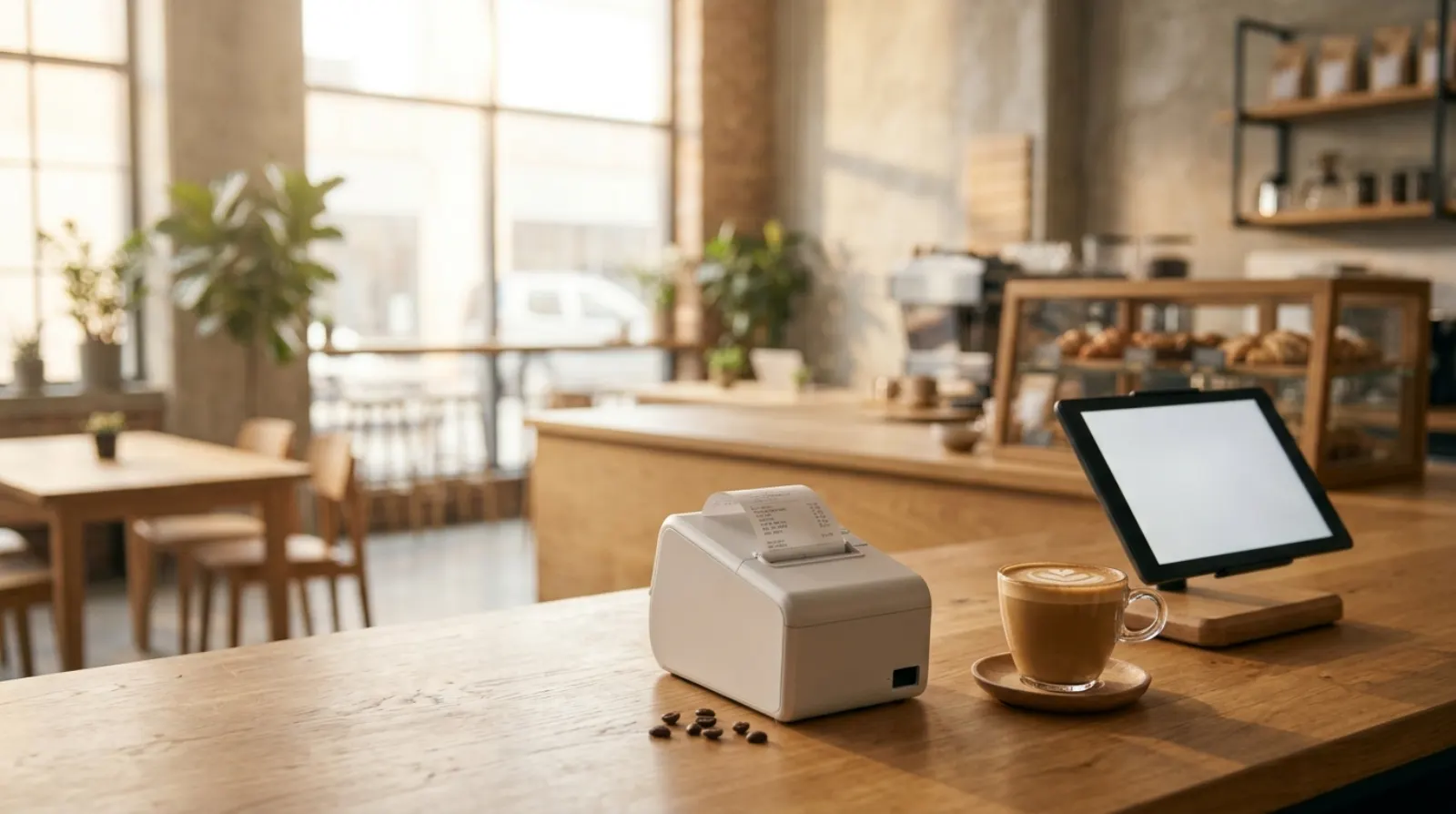
The header shows whether the screen is connected to the till: a green dot means orders are coming in, a red one means it is reconnecting. If your team prefers paper, Ordo also prints kitchen tickets on an ordinary 58 mm or 80 mm receipt printer, and the screen and tickets can run side by side.
Getting the kitchen display running in one evening
Setup needs no technician. Doing it in the evening, after closing, means the bar can work from the screen the next morning.
- Check in Ordo settings that the kitchen display is on; it is enabled by default.
- If the bar and the kitchen are separate, create stations and give each its menu categories.
- Create accounts with the chef role for your kitchen staff.
- Open the screen on a tablet via the QR code and ring up a test order.
- Decide whether you still want paper tickets, and connect a printer if you do.
Works without internet
The kitchen display gets its orders from the Ordo computer over the café's local network. If the internet goes down, orders keep reaching the kitchen and statuses keep changing as usual; the Windows and Linux app does not need an outside connection for this.
Ordo costs 1990 KGS per month for one café (about 23 USD), and the kitchen display is included along with the till, inventory and reports. Connect as many devices as you like. The first 2 weeks are free and no card is needed.
Kitchen display or paper tickets
Paper tickets cost less to start with, but the kitchen cannot see how long a guest has waited, and a void at the till has to be passed on by word of mouth. Here is how the two compare:
Kitchen display vs paper tickets
| Kitchen display | Paper tickets | |
|---|---|---|
| How the order reaches the kitchen | Appears on screen as soon as it is sent | Prints and goes on the pass |
| How long it has waited | A timer on every card | You work it out yourself |
| Voided items | Shown at once, marked as voided | Someone walks over and tells the kitchen |
| Ready for the floor | Servers see the status on their own screen | The cook calls it out |
| Bar and kitchen apart | Stations split one order | Each point needs its own ticket |
| What you need | A tablet, phone or monitor on the café Wi-Fi | A 58 mm or 80 mm thermal printer |
You can run both at once, for example a screen at the bar and tickets in the kitchen.
A pickup board for guests
Besides the kitchen display, Ordo has an order-status board for guests. Open it on a TV or tablet in the dining area: one column lists the order numbers being prepared, the other those ready for pickup. Guests watch for their number, and the barista no longer has to shout names over the queue.
The board is paired with a one-time link from the settings and needs no staff sign-in. A paired screen sees only order numbers and statuses, never amounts or what was ordered. You choose which statuses it shows and how often it refreshes, and you can revoke a screen at any time.
FAQ
Do I pay extra for the kitchen display?
No. The kitchen display is part of the Ordo subscription, and you can show it on any tablet, phone or monitor with a browser on your Wi-Fi.
Can I split orders between the bar and the kitchen?
Yes. Create stations, assign menu categories to them, and each station sees only its own items from a shared order.
Does the kitchen see add-ons and guest notes?
Yes. In the tabbed view add-ons are listed under the item, on the board they open with a tap, and the guest's note is highlighted in colour.
Does the kitchen display work offline?
Yes, when the till runs as the Windows or Linux app. The display receives orders over the café Wi-Fi, so no internet is needed.
Can we keep paper kitchen tickets?
Yes. Ordo prints kitchen tickets on a 58 mm or 80 mm thermal printer, either instead of the screen or alongside it.
Can guests see when their order is ready?
Yes. The pickup board runs on a TV or tablet in the dining area and shows order numbers under Preparing and Ready for pickup. It never shows amounts or order contents.
Who can mark orders on the kitchen display?
Cooks, managers and owners can sign in to the kitchen display. Cashiers and waiters see when an order is ready on their own screen, but they do not change kitchen statuses.